Getting Started
Patternism helps you track your place in a knitting pattern PDF. Open a pattern, count your rows, and mark your progress with highlights. Here's everything you need to know.
Opening a Pattern
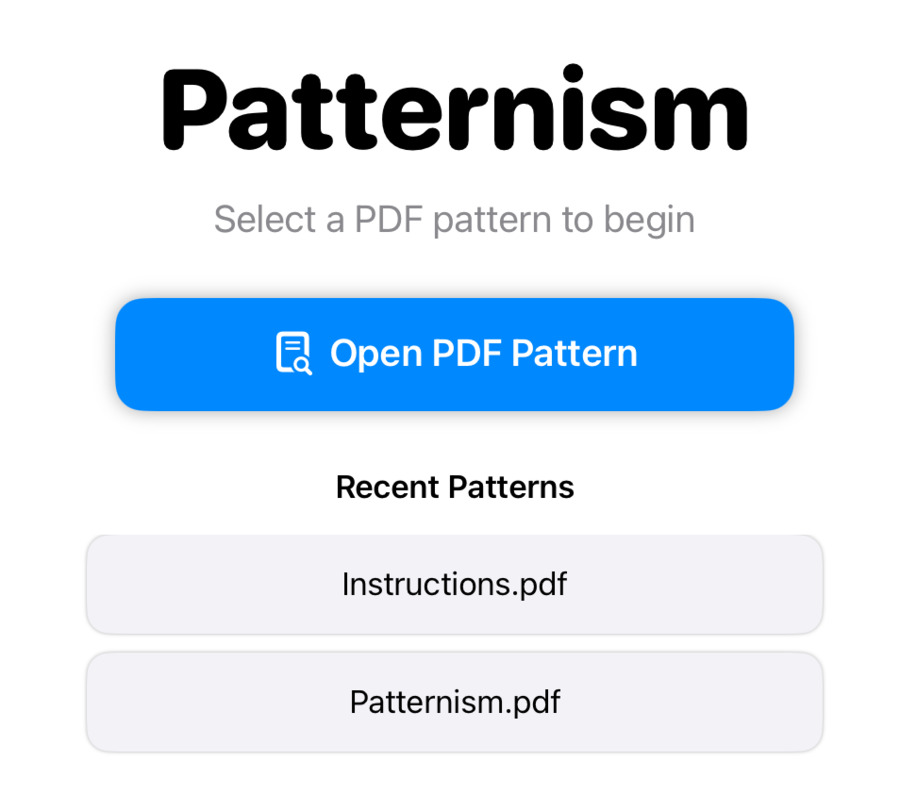
Tap Open PDF Pattern on the home screen to import a PDF from your device, iCloud Drive, or any connected cloud storage. Patternism copies the file into its own storage so your original is never modified.
Recently opened patterns appear below the button — tap any of them to jump right back in.
Viewing Your Pattern
Once open, your PDF fills the screen with the counter bar at the bottom. Use standard gestures to navigate:
- Pinch to zoom in and out
- Drag to pan around the page
Your zoom level and scroll position are saved automatically for each row. When you come back to a row, the view restores exactly as you left it.
The screen stays on while you're in a pattern, so you won't need to keep tapping to prevent it from sleeping.
Using the Counters
The counter bar at the bottom of the screen has four counters:
Row
Your primary counter. Tap it to advance to the next row. On iPad, the small undo button on its left side lets you go back a row if you tapped too soon.
Repeat
Tracks which repeat of a section you're on. Tapping it increments the repeat and resets your row counter back to 1 — useful when you've finished a section and want to start it again.
Auxiliary Counters
Two extra counters for anything you need to track alongside your rows — increases, decreases, stitch counts, or whatever your pattern calls for. You can rename them and set each one to count up or down in the project settings.

Auto-Repeat
If your pattern has a repeating section — say, 12 rows that you work multiple times — set Auto-Repeat after 12 rows in the project settings. When your row counter hits 12 and you tap it again, it automatically resets to 1 and bumps your repeat counter.
Set it to 0 to turn auto-repeat off.
Using Highlights
Highlights are colored rectangles you can place on your pattern to mark where you're working.
Adding a Highlight
Tap the highlighter button (top right, blue circle) to drop a new yellow highlight in the center of the visible area.
Moving and Resizing
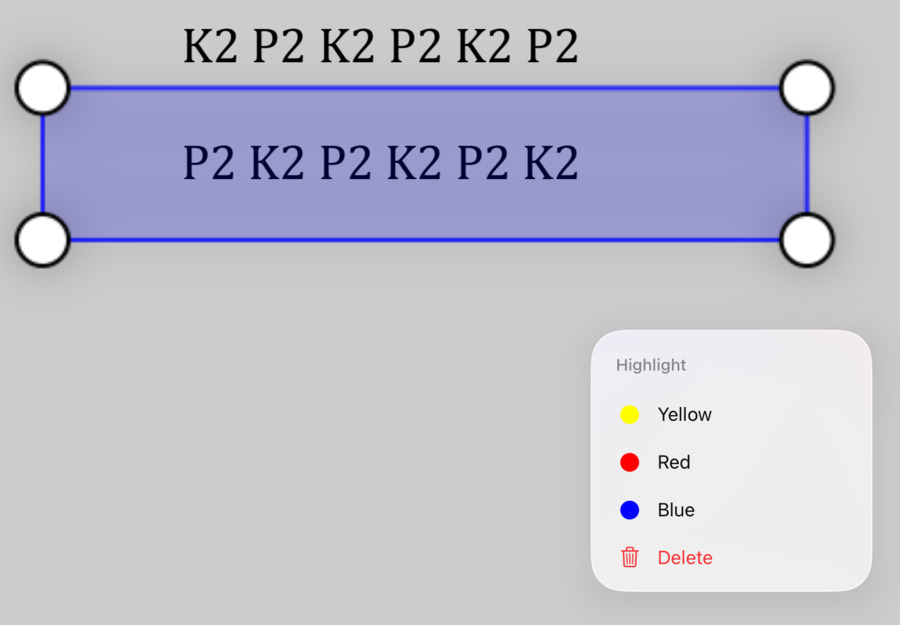
Drag a highlight to reposition it. Drag any of the four corner handles to resize it. Tap a highlight to toggle its handles on and off — when handles are hidden, the highlight won't interfere with scrolling.
Changing Color
Long-press (or right-click on iPad) a highlight to open the context menu. Choose Yellow, Red, or Blue. Use different colors to mark different things — the current row, a section boundary, a note-to-self.
Deleting a Highlight
Long-press a highlight and choose Delete from the context menu.
Highlights and Rows
Each row saves its own set of highlights. When you advance to a new row that hasn't been visited before, your current highlights carry forward as a starting point. When you go back to a previously visited row, its saved highlights are restored.
This means you can adjust a highlight's position for the current row without affecting other rows.
Project Settings
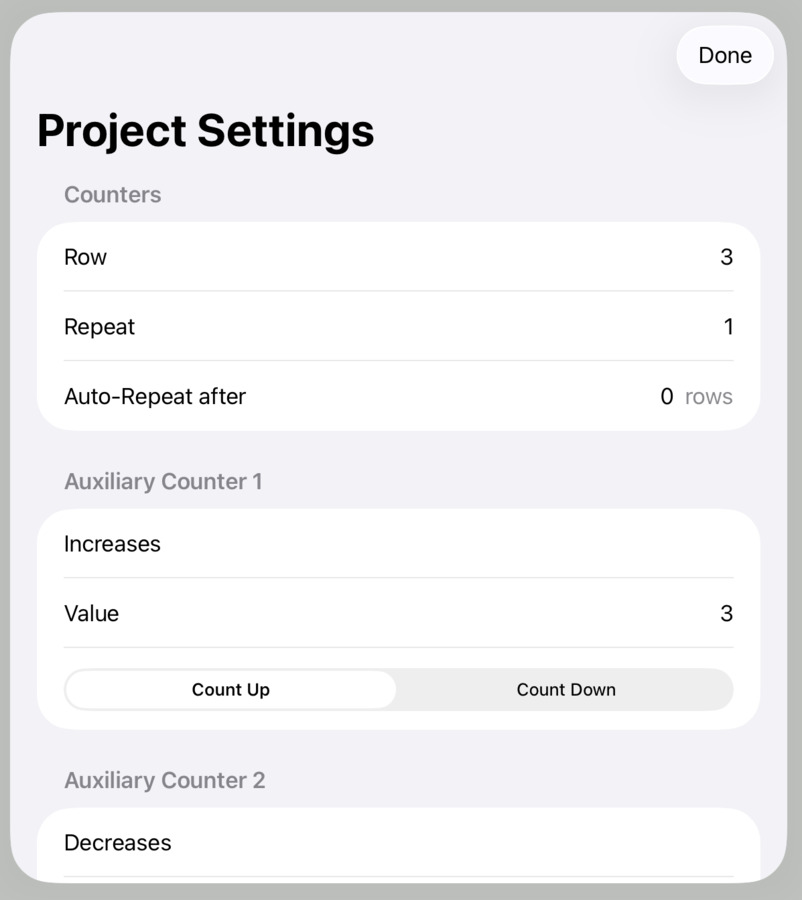
Tap the gear button (top right, below the highlighter) while viewing a pattern to open its settings.
- Row & Repeat — Edit counter values directly by typing
- Auto-Repeat after N rows — Set the row threshold for automatic repeat (0 to disable)
- Auxiliary Counter labels — Name each aux counter (e.g., "Increase", "Decrease")
- Auxiliary Counter direction — Set each to Count Up or Count Down
- Erase All Data — Clears all counters, highlights, and saved view states for this pattern
App Settings & iCloud Sync
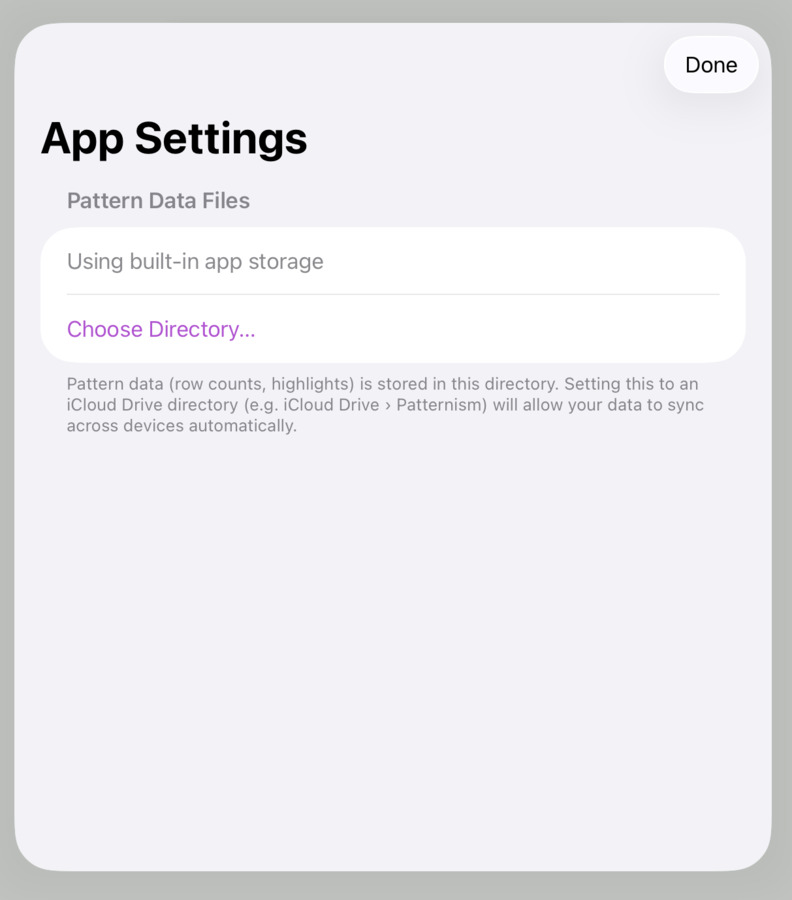
Tap the gear icon in the top right of the home screen to open app-wide settings.
Pattern Data Directory
By default, Patternism stores your pattern data (counters, highlights, view positions) in built-in app storage. You can change this to any folder on your device.
Syncing with iCloud
To sync your progress across devices:
- Create a folder in iCloud Drive (e.g., "Patternism")
- Open App Settings and tap Choose Directory…
- Navigate to your iCloud Drive folder and select it
- If you have existing data, Patternism will offer to move it to the new location
Do this on each device and they'll stay in sync automatically through iCloud.
Tips
- Use a yellow highlight as a "current row" marker and a red one for section boundaries.
- Set auto-repeat before you start a repeating section — it saves a lot of manual resetting.
- Tap a highlight to deactivate its handles when you want to scroll freely without accidentally moving it.
- The undo button next to each counter is there for accidental taps — no need to open settings to fix a miscount.
- Your zoom level is saved per row, so you can zoom into a chart for detailed rows and zoom out for simpler ones.